
The Digital Invoice Assistant Mobile App was developed to help make managing your shifts and documenting the care you provide to your Genworth clients easier.
You can explore how to set up the app and how to use key features by watching the videos below.
How to Use the Digital Invoice Assistant
 Important. Log in to the app before the end of the day on Saturday to ensure you have captured all shift details, and any offline shifts have had the opportunity to sync to the invoice. It is important to ensure all the shifts you worked for the week are included in the invoice that are sent to the client for review.
Note: For any offline shifts created that are not synced to the invoice by end of day Saturday, they will transfer to the next week’s timecard.
General
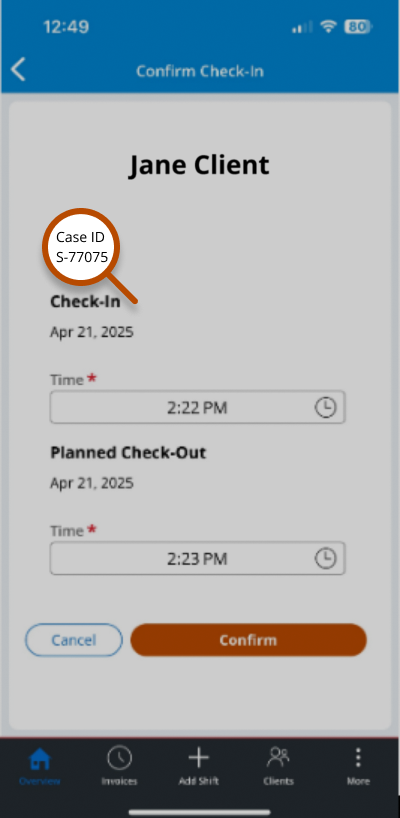
Case ID S-### is shown after choosing Case Information and this represents a unique Genworth number that helps us troubleshoot any errors or issues encountered in the app.
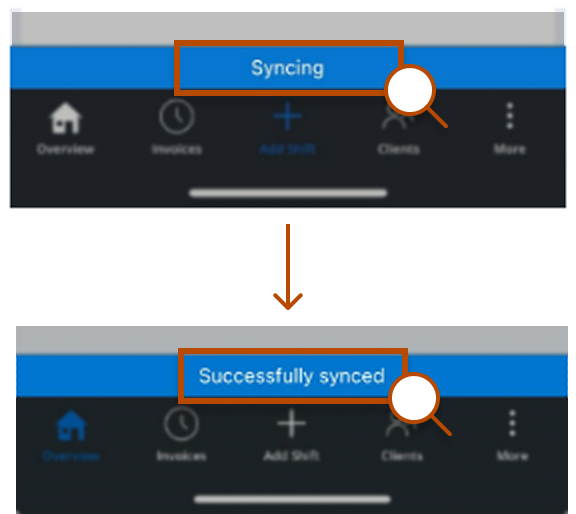
The information entered in the app is being sent back to Genworth. Once successfully synced, everything is refreshed. Offline cases are captured at this time. Syncing occurs periodically & every time you come back online.
Check in/Check out
If you never checked in to the shift, and the invoice has not been sent to the client for review, then you can simply open the shift card and provide the check-in and check-out details. If the invoice has already been sent to the client, they will need to add the shift to the invoice during their review.
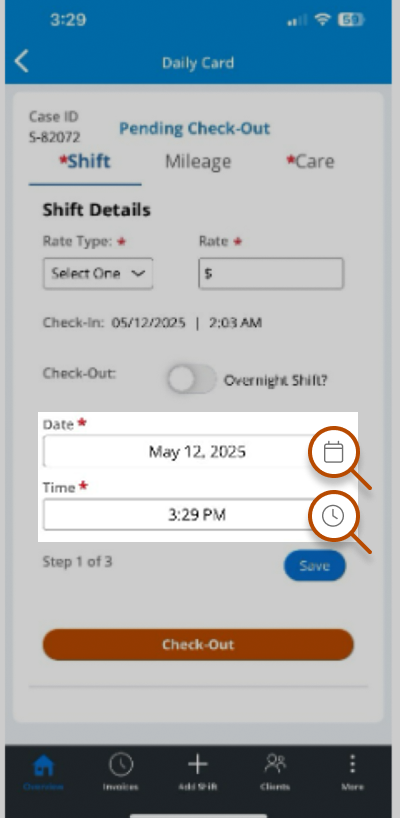
If you simply forgot to check-out of a shift you checked in for, then you can update the check-out time by opening the shift card and performing the check-out process. If you forgot to check-out of a shift that has already been submitted to the client for review, they will need to make the change while reviewing and submitting the timecard for reimbursement.
Shift Rates
It is best to create 2 shift cards when a change is needed for the shift rate in the middle of the shift. Perform the check-in and check-out steps with one shift card to capture the first rate and then create another shift card for the different rate.
Shift Cards
Yes, by clicking on the field, you can adjust the entry.
No, you can also manually add a shift by choosing Add Shift at any time.
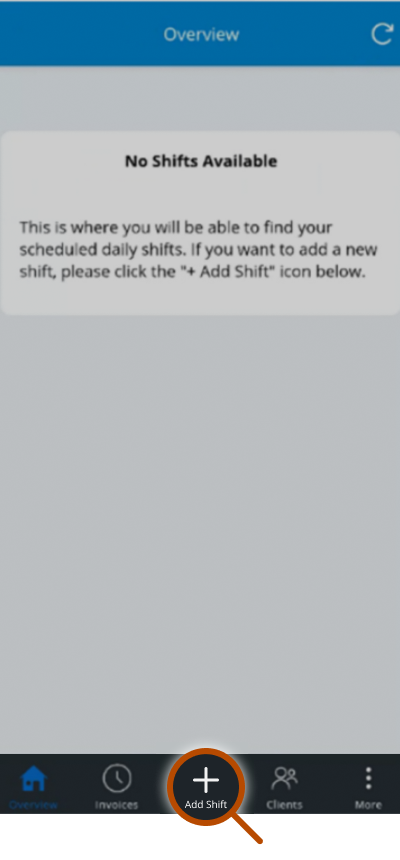
You can create a shift card for a future date by clicking on Add Shift, however, you will not be able to check-in to that shift until that day.
You can do this during the registration process. You can also edit or update recurring shifts on the client tab.
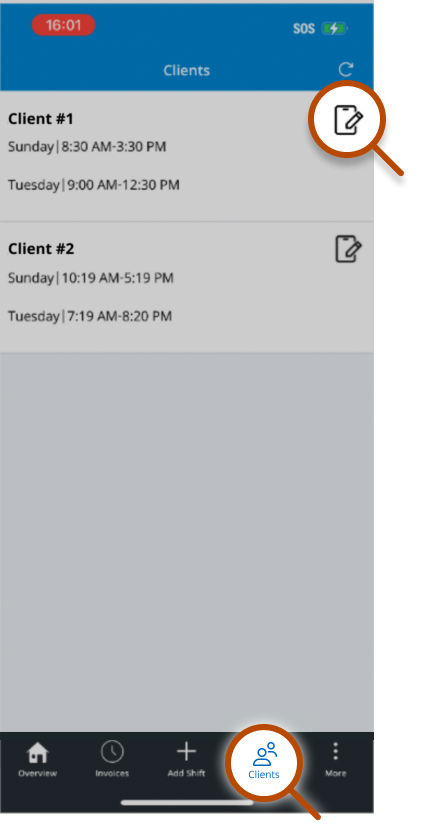
Be sure you are online. This feature is not available while you are offline.
You can create a new shift card any time by selecting Add Shift. If you create the shift while offline, you will need to login online before end of day Saturday to sync the shift to your invoice before it is sent to the client for review.
Your invoice is sent to the client for review on Saturday nights between 10pm-12pm. For overnight Saturday shifts, you will need to log the hours for Saturday in one shift card and the hours for Sunday in a second shift card.
Offline/Online
Once you log in while online, the app will sync your offline shift card to the invoice. If the shift card was created offline, and you did not log in to sync the shift card by 10 PM ET on Saturday, it will be deleted from the invoice and the client will need to add it during their review.
The shift will stay visible on the overview page until you come back online. Once you are online it will be deleted from the overview page.
Invoices
Pending review: These are invoices which have not been submitted to the client for review.
Pending Claimant Review: These are invoices that have been sent to the client for review.
Submitted to Genworth: These are invoices that have been reviewed by the client or authorized user and sent to Genworth.
Every Saturday between 10pm –12am the shift cards for the previous week worked are sent to Genworth.com. You can see that this was done by going to the invoice tab. You will see a status of “Pending Claimant Review.” The client and/or authorized user will also receive an email.
Features
| Feature | Online Feature | Offline Feature |
|---|---|---|
| Initial Log In | ✔️ | ❌ |
| Independent Caregiver Registration | ✔️ | ❌ |
| Display Invoices totals and status | ✔️ | ❌ |
| List of clients & Setting/Editing Reoccurring shifts | ✔️ | ❌ |
| Profile Information Updates | ✔️ | ❌ |
| Provide feedback | ✔️ | ❌ |
| Walkthrough video & FAQs | ✔️ | ❌ |
| Notifications (alerts controlled via phone settings) | ✔️ | ❌ |
| Terms of Use / Privacy policy/Notice at collection | ✔️ | ❌ |
| Mobile App creating new recurring shifts daily cards (every Sunday) | ✔️ | ❌ |
| Add New Shift (System will display the shift card when back online) | ✔️ | ✔️ |
| Check-in for shift | ✔️ | ✔️ |
| Check-out of shift | ✔️ | ✔️ |
| Confirmation/fraud notice (upon check-out) | ✔️ | ✔️ |
| Edit Shift (System will display the changes on shift card when back online) | ✔️ | ✔️ |
| Delete Shift (System will remove from the overview screen when back online) | ✔️ | ✔️ |
| Log off | ✔️ | ✔️ |
| Log on with pin | ✔️ | ✔️ |
Do you need help or have specific questions regarding the Digital Invoice Assistant Mobile App?
Please contact us at: 866.419.0401
Monday – Thursday:
8:30 AM – 6 PM ET,
Friday:
9 AM – 6 PM ET
We look forward to assisting you.